Table of Content

How to Secure Google Antigravity and Gemini Agents: 10 Controls for 2026
-
November 25, 2026
-
Summary:
The weeks before someone resigns are when customer lists, pricing and source code are most likely to walk out the door, and AI tools now make that data easier to reshape and carry. Companies that watch data movement on the device, in context, can protect what matters without treating every employee like a suspect.
Kitecyber | Data & Gen AI Security | November 2026
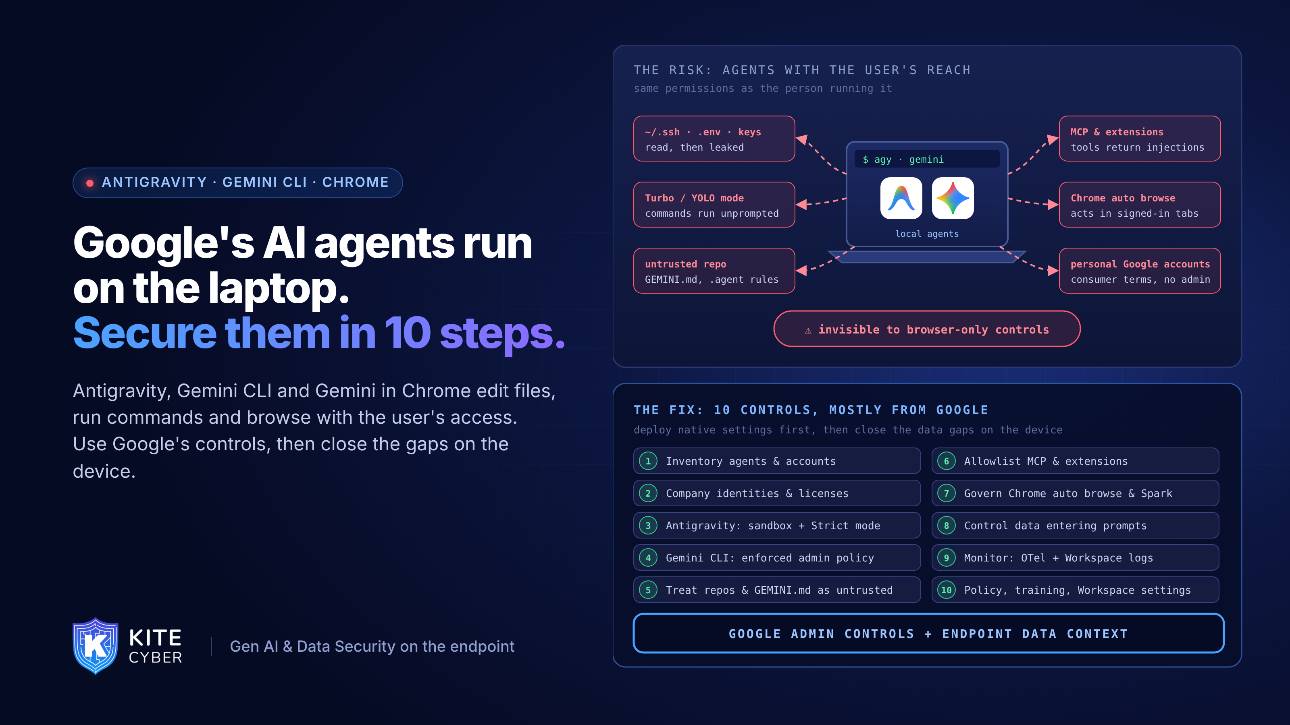
A developer opens Google Antigravity, hands an agent a ticket and lets it plan, edit files, run the build and check the result in its own browser. Another runs gemini in a terminal to refactor a service. A product manager asks Gemini in Chrome to auto browse through a CRM and update twenty records. A finance analyst uses the Gemini desktop app to turn a folder of local spreadsheets into a report. Each of them has put a Google agent to work with their own access to files, terminals, browsers and business data.
That is the promise of agentic AI, and Google is shipping it on every surface it owns: the IDE, the terminal, the browser, the desktop and Workspace. This guide explains where the risk sits, walks through ten controls security teams can put in place using what Google provides, highlights the settings that matter most, and closes with the Gemini app and Workspace policies every organization should configure.
Key takeaways
- Antigravity, Gemini CLI, Gemini in Chrome and the Gemini desktop app act on the endpoint with the user’s permissions. Network controls see only part of what they do.
- Google’s controls are uneven across products. Gemini CLI and Chrome have admin-enforced policies. Antigravity’s agent permissions are configured in the app, per user and per project, so baselines need deliberate rollout and verification.
- Google’s own bug bounty guidance lists data exfiltration through indirect prompt injection, and code execution when terminal auto-execution is permissive, as known issues in Antigravity. Treat every repository, rules file, web page and connector response as untrusted.
- Workspace DLP for Gemini protects Drive, Gmail and Chat data that Gemini retrieves. It does not cover local files an agent reads on a laptop, Gemini Enterprise or Gemini in Chrome. That gap needs data-aware controls on the device.
Why Google’s agents change the risk model
Google Antigravity is an agent-first development platform: a desktop app with an agent manager, the agy CLI and IDE extensions. Agents plan work as reviewable artifacts, edit files, run terminal commands, call MCP servers and drive a built-in browser subagent. It can be used with personal Google accounts, business accounts, or licensed through Gemini Enterprise under Google Cloud terms, and it can run Gemini and administrator-enabled third-party models.
Gemini CLI is Google’s open-source terminal agent. It reads and writes files, runs shell commands, searches the web and calls MCP servers and extensions. Agent mode in Gemini Code Assist uses the same configuration.
Gemini in Chrome can read the current page, act across Google apps and, with auto browse, complete multi-step tasks in browser tabs, including signing in to sites with Google Password Manager when the user allows it. Chrome can also connect to Gemini Spark, an agent that can invoke auto browse in the active browser session.
The Gemini desktop app for macOS and Windows can share screen context, dictate into any app, organize local files into Docs and Sheets, and launch Antigravity in one click.
The Gemini app, Gemini in Workspace and Gemini Enterprise work across Gmail, Drive, Docs, Calendar and connected business systems.
Where Google’s admin-enforced controls exist today
This is the most important thing to understand before rollout, because it decides how much you can enforce centrally.
| Product | Central, admin-enforced controls | What that means |
|---|---|---|
| Gemini CLI | Yes: Enterprise Admin Controls (Code Assist Standard and Enterprise) that users cannot override locally, plus a system settings.json | You can force strict mode, sandboxing, MCP allowlists and an authentication method |
| Antigravity | Partly: Gemini Enterprise licensing, IAM, VPC Service Controls and request/response logging. Agent permissions are set in the app per user and project | Distribute and verify a baseline. Use endpoint controls to detect drift |
| Gemini in Chrome | Yes: Chrome Enterprise policies by OU or group | You can turn Gemini, auto browse and Spark on or off and limit sites |
| Gemini app and Workspace | Yes: Admin console, DLP for Gemini, Vault, audit logs, context-aware access | Strong controls for cloud data in your domain |
Shared responsibility
| Google provides | Your organization decides |
|---|---|
| Model safeguards, product security, sandboxes and patches | Which accounts, licenses and products employees may use |
| Enterprise data commitments (Workspace and Google Cloud customer data is not used to train models outside your domain without permission) | What data employees may put into prompts, files and agent tasks |
| Admin controls: Admin console, Chrome policies, Gemini CLI admin controls, Gemini Enterprise IAM | Whether those controls are configured, tested and enforced |
| Audit logs, Vault, request/response logging and OpenTelemetry export | Who collects and reviews them, and how incidents are handled |
Which terms apply depends on how a user signs in. Google’s Gemini CLI terms page states that with a personal account on Gemini Code Assist for individuals, or an unpaid Gemini API key, prompts, answers and related code may be used to improve Google’s products, including model training. Code Assist Standard and Enterprise, paid API and Vertex AI usage are not used for training. Enterprise commitments only help if employees are actually signed in to enterprise accounts.
What has already gone wrong
Researchers have tested Google’s agents heavily since launch. The examples below are drawn from public disclosures.
- Google lists the core risks itself.Google’s Bug Hunters page for Antigravity documents two known issues: data exfiltration through indirect prompt injection (the agent can read files and render Markdown that leaks data in crafted URLs), and code execution through prompt injection when terminal auto-execution is set to a permissive mode.
- Exfiltration days after launch. In November 2025, researchers including Embrace The Red showed Antigravity reading a developer’s .env file and sending its contents out through the URL-reading tool or a Markdown image, triggered by instructions hidden in a source file.
- A persistent backdoor. Mindgard showed that a malicious workspace could make Antigravity write to a global configuration file, so attacker code ran every time Antigravity started, even across projects. CSA reports it as patched.
- Secure Mode bypassed. Pillar Security found that the native find_by_name tool passed unsanitized input to the fd utility, turning a file search into code execution. Because it was a native tool rather than a shell command, it ran before Secure Mode’s checks. Google fixed it in February 2026. In July 2026 Pillar published further sandbox escapes affecting Antigravity, Gemini CLI, Codex and Cursor, in which a sandboxed agent writes files that trusted tools outside the sandbox later run.
- Token exposure. Lumia Security found that an Antigravity component served a local web page containing the user’s authentication token. Google fixed it in January 2026.
- Gemini CLI.Tracebit showed in July 2025 that a GEMINI.md context file plus weak command validation could silently run malicious code; it was fixed in version 0.1.14. In 2026, CVE-2026-13745 let an untrusted .env file redirect Gemini CLI’s home directory to run code, and Pillar’s “TrustIssues” research showed a prompt injection in a public GitHub issue compromising a Gemini-powered triage workflow. Both are fixed in Gemini CLI 0.39.1 and run-gemini-cli 0.1.22.
- Zero-click data theft in Workspace. Noma Labs’ GeminiJack showed a shared Doc, calendar invite or email instructing Gemini Enterprise to search Workspace data and leak it through an image request. Tenable’s Gemini Trifecta showed similar injection through logs, search history and the browsing tool. Google fixed both.
- Everyday exposure. Netskope’s Cloud and Threat Report: 2026 found the average organization records 223 incidents a month of users sending sensitive data to AI apps, doubling year over year, and that 47% of generative AI users rely on personal accounts.
The pattern repeats across vendors: untrusted content steers an agent that already has the user’s access.
Six surfaces where data can leave through Google’s agents
- 1.Antigravity. Workspace files, terminal commands, MCP tools, the browser subagent and artifacts such as screenshots and recordings.
- 2.Gemini CLI and Code Assist agent mode.Source code, configuration and anything in reach of the developer’s account.
- 3.Gemini in Chrome and auto browse. Page content, signed-in sessions and saved passwords, used on the user’s behalf.
- 4.The Gemini desktop app. Screen context, dictation into other apps and local files organized into Docs and Sheets.
- 5.The Gemini app,Gemini in Workspace and Gemini Enterprise. Pasted and uploaded content, plus Gmail, Drive, Calendar and connected business data.
- 6.MCP servers, extensions and connectors.Tools that extend every surface above, and that can return prompt injection.
10 controls to secure Antigravity and Gemini agents on employee devices
1. Build an inventory of Google agents, accounts and add-ons
- Which devices run Antigravity (app, agy CLI or IDE extension), Gemini CLI, the Gemini desktop app, Gemini Code Assist, and which Chrome profiles have Gemini or auto browse enabled?
- Which accounts are signed in: your Workspace or Gemini Enterprise identities, personal Gmail accounts, or Gemini API keys?
- What is configured: ~/.gemini/ folders (Antigravity keeps its app data under ~/.gemini/antigravity/), project .gemini/settings.json and GEMINI.md files, Antigravity .agent rules, MCP servers, extensions, plugins and skills.
Repeat the inventory regularly. These products release frequently and their settings models change.
Priority: Immediate
2. Pin usage to company identities and licenses
- License the enterprise versions.Use Workspace editions with Gemini, Gemini Enterprise for Antigravity (Standard or Plus seats give centralized administrative controls across the app, CLI and IDE extensions), and Gemini Code Assist Standard or Enterprise, or Vertex AI, for Gemini CLI.
- Enforce the sign-in method in Gemini CLI. Set security.auth.enforcedType in the system settings file. If a user’s method does not match, the CLI prompts them to switch, and non-interactive runs exit with an error.
- Block consumer Google accounts on managed networks. Google Workspace documents a proxy-inserted header, X-GoogApps-Allowed-Domains, added to *.google.com traffic, that limits Google sign-in to the domains you list and leaves out consumer_accounts such as Gmail. Google Cloud services, including the gcloud CLI, honor it too. Pair it with Chrome’s sign-in restriction policies for managed browsers, and test it against each agent’s sign-in flow.
- Turn off training-data sharing in Antigravity’s account settings for any account that is not covered by enterprise terms.
Header-based controls only apply where traffic passes through your proxy, so remote devices need an endpoint-based path.
Priority: Immediate
3. Set and verify a safe permission baseline in Antigravity
Antigravity evaluates every sensitive action as a permission in the form action(target) across Deny, Ask and Allow lists, with Deny always winning. The supported actions include command, read_file, write_file, read_url, execute_url (browser navigation), download_url and mcp, plus unsandboxed in the settings business accounts use.
The most important settings:
- Never use Turbo (or “Always Proceed”) on a normal laptop. Turbo runs every command without prompting and gives the agent full filesystem access. Google’s own enterprise guidance says to use it only in isolated containers or disposable branches.
- Keep the sandbox on. Under the Default preset, commands run in an OS-level sandbox (Linux namespaces, macOS Seatbelt, and on Windows 11 24H2 or later) with no network, writes limited to the workspace and temp folders, and ~/.ssh and .env blocked. Business and enterprise accounts currently use the “previous permission settings”, where you enable Sandbox Mode and set terminal execution to Proceed in Sandbox or Require Review yourself. The newer Auto preset is not yet available to business accounts.
- Turn on Strict mode for sensitive projects. It forces review for terminal commands (ignoring the allowlist), browser JavaScript and artifacts, respects .gitignore, blocks access outside the workspace and limits Markdown images and URL reads to your browser allowlist, which closes a common exfiltration path.
- Keep non-workspace file access off, and set browser actuation rules so the browser subagent can only open approved domains. Sensitive Google subdomains such as mail.google.com and drive.google.com need explicit rules.
- Add deny rules for the obvious:
command(sudo)
command(rm -rf)
command(regex:curl .*)
write_file(.git/)
read_file(/Users/*/.ssh)
read_file(/Users/*/.aws)
Because these settings live in the app, publish a baseline, check it during onboarding and audits, and watch for projects that override the global preset. Verify current admin options with Google, since enterprise policy controls for Antigravity are still evolving.
Priority: High
4. Enforce Gemini CLI policy centrally
Gemini CLI has the most mature admin controls of Google’s agents.
- Use Enterprise Admin Controls in the Management Console for Code Assist customers. They are enforced globally and cannot be overridden locally. By default, strict mode is on (no YOLO mode), and extensions and MCP are off until you allow them.
- Deploy a system settings file at /etc/gemini-cli/settings.json (Linux), /Library/Application Support/GeminiCli/settings.json (macOS) or C:\ProgramData\gemini-cli\settings.json (Windows). It overrides user and project settings. Protect it with file permissions, and lock down the GEMINI_CLI_SYSTEM_SETTINGS_PATH environment variable so users cannot point the CLI elsewhere.
- A starting baseline:
{
  "security": {
    "disableYoloMode": true,
    "disableAlwaysAllow": true,
    "folderTrust": { "enabled": true },
    "environmentVariableRedaction": { "enabled": true },
    "auth": { "enforcedType": "vertex-ai" }
  },
  "tools": { "sandbox": "docker", "sandboxNetworkAccess": false },
  "mcp": { "allowed": ["corp-tools"] },
  "telemetry": { "enabled": true, "target": "gcp", "logPrompts": false },
  "privacy": { "usageStatisticsEnabled": false }
}- Notes on the choices:
- Sandboxing is off by default. On macOS the default Seatbelt profile (permissive-open) confines writes but allows broad reads and network access, so choose a strict- profile or Docker.
- Prefer allowlists (tools.core and the policy engine) over blocklists. Google calls excludeTools less secure because string blocks can be bypassed.
- Choose the enforcedType value that matches your licensing (for example Vertex AI or Google login).
Priority: High
5. Treat repositories, rules files and extensions as untrusted input
Every major Antigravity and Gemini CLI finding started with content the agent read.
- Patch quickly. Require Gemini CLI 0.39.1 or later and keep Antigravity on current releases. Several Antigravity fixes shipped server-side or in app updates without CVEs, so do not rely on CVE feeds alone.
- Review agent instruction files like code. GEMINI.md, Antigravity .agent rules (which are injected into the system prompt), .gemini/settings.json, .env and .vscode/tasks.json can all steer an agent or run code. Flag changes to them in pull requests.
- Open unfamiliar repositories in a container or disposable VM, especially if you must relax Antigravity’s review settings.
- Restrict extensions and plugins. In Gemini CLI, keep extensions disabled in admin controls or use security.allowedExtensions and security.blockGitExtensions. In Antigravity, review plugins and skills before teams adopt them.
- Keep Antigravity’s review-driven workflow. Reviewing plans and artifacts before the agent acts gives people a chance to spot a hijacked task.
Priority: High
6. Govern MCP servers and connectors with least privilege
- Gemini CLI: define each approved server in the system file and list it in mcp.allowed. Without the allowlist, any server a user defines will run. Admin controls add an MCP allowlist with per-server includeTools and excludeTools, and required servers that are always injected.
- Antigravity: MCP calls default to Ask. Allow only specific tools (mcp(linter/*)), keep mutating tools on Ask (mcp(sql/execute_mutation)), and deny servers you do not trust.
- Workspace and Gemini Enterprise: turn connected apps in the Gemini app on only for groups that need them, and review Gemini Enterprise connectors and data access in the Admin console.
- Scope credentials: give servers dedicated, read-only service accounts, and never connect an agent to production with personal admin credentials.
Priority: High
7. Configure Gemini in Chrome and the desktop app deliberately
- Decide on Gemini in Chrome. It requires both the Gemini app setting and Chrome’s GeminiSettings policy. Note that when GenAiDefaultSettings is unset, GeminiSettings defaults to allowing Gemini integrations, so set it explicitly per OU or group.
- Control auto browse. It is off by default for managed users. Enable it with GeminiActOnWebSettings only for groups that need it, and scope it with GeminiActOnWebAllowedForURLs and GeminiActOnWebBlockedForURLs. Block HR, finance, admin consoles and banking sites at minimum.
- Control Gemini Spark. GeminiSparkSettings governs whether the Spark agent can use the active browser session.
- Use Chrome Enterprise Premium where you have it: DLP rules on paste, upload, download and print, templates such as “Block pasting on generative AI sites” (with an exception for approved tools), and URL filtering for unapproved AI services.
- Review the Gemini desktop app. Screen sharing, dictation into other apps and local file tasks extend Gemini beyond the browser. Confirm which Admin console settings apply to it in your edition before broad rollout.
Priority: Medium–High
8. Control what sensitive data reaches the prompt
Workspace’s DLP for Gemini is valuable: it can block Gemini from using Drive sources (with Gmail and Chat in beta) that match your rules. But Google states that services such as Gemini Enterprise and Gemini in Chrome are not subject to those Drive restrictions, and it does not see a local .env file that Antigravity reads or a spreadsheet pasted into a desktop app.
- Define data categories that must never go to any AI tool, and categories allowed only in licensed enterprise products.
- Use what Workspace offers: DLP for Gemini, classification labels, IRM (Gemini will not retrieve files that block download, copy and print), client-side encryption and trust rules for Drive sharing.
- Classify data on the device too,so paste, upload, screen-share and agent file access can be controlled at the moment of action.
- Coach rather than silently block in grey areas.
Priority: High
9. Monitor usage and prepare an incident playbook
- Gemini CLI: export OpenTelemetry to Google Cloud or your own collector with logPrompts set to false unless policy allows prompt storage.
- Antigravity in Gemini Enterprise: enable request/response logging for audit records, and add the relevant APIs to a VPC Service Controls perimeter.
- Workspace: use Gemini for Workspace log events in the audit and investigation tool, the Reports API (including Drive files Gemini accessed), and Vault for Gemini app conversations.
- Fill the device gap: none of these show every local file an agent read, every command it ran or every site auto browse opened. Endpoint telemetry provides that context.
- Write the playbook: revoke sessions and API keys, rotate credentials an agent could read, remove a malicious MCP server, extension or rules file, and preserve local evidence.
Priority: Medium–High
10. Write an AI acceptable-use policy and train people on it
- Approved products, licenses and the only accounts employees may use.
- Data categories that cannot be used with AI, with examples.
- Autonomy rules: no Turbo or YOLO outside containers, and which actions always need a human (pushing code, sending email, purchases, changes in production or HR systems).
- Review requirements for AI-generated code and documents.
- A blame-free way to report mistakes quickly.
Map it to frameworks you already report against, such as SOC 2, ISO 27001, HIPAA or GDPR.
Priority: Foundational
Securing the Gemini app and Gemini in Workspace: policies to configure
Most employees will use Gemini through the Gemini app and Workspace rather than coding agents. Review these settings in the Google Admin console before broad rollout. Availability varies by edition.
| Area | Policy to configure | Why it matters |
|---|---|---|
| Access | Turn the Gemini app, Gemini in Workspace apps, NotebookLM and Gemini Enterprise on only for the OUs or groups that need them. Configuration groups override OU settings. | Limits who can use each capability. |
| Licensing | Make sure users have a qualifying edition. Users without one get consumer terms if you grant them access. | Enterprise data protections apply only to licensed use. |
| Device and context | Apply context-aware access to the Gemini app and NotebookLM (identity, device posture, IP, location). | Keeps Gemini off unmanaged or non-compliant devices. |
| Connected apps | Turn Workspace and other Google apps in Gemini on or off; review Gemini Enterprise access to Workspace data. | Controls how far a single prompt can reach. |
| Data protection | DLP for Gemini (Block data access or Audit only), classification labels, IRM, client-side encryption, Drive trust rules. | Stops Gemini using sensitive sources. |
| Retention | Set Gemini conversation history and auto-delete (3, 18 or 36 months), and Vault retention rules and holds. | Controls how long prompts and responses persist and supports eDiscovery. |
| Sharing | Decide whether users may share Gemini conversations and Gems. | Prevents internal oversharing of sensitive chats. |
| Browser | Set GeminiSettings, auto browse and Spark policies; add Chrome Enterprise Premium DLP and URL filtering. | Governs Gemini where most work happens. |
| Audit | Review Gemini for Workspace log events, usage reports and Drive access logs; export to BigQuery or your SIEM. | Gives evidence for investigations and audits. |
Two practical notes. Admin console settings govern only your domain, so an employee on a personal Gmail account is outside all of them. And tell employees what is monitored and why; clear rules and in-the-moment guidance change behavior better than surprise blocks.
Quick-start checklist
| # | Control | Google option | Priority |
|---|---|---|---|
| 1 | Inventory agents, accounts, configs and add-ons | MDM app inventory, Chrome management reports, config review | Immediate |
| 2 | Company identities and licenses only | Gemini Enterprise, Code Assist, enforcedType, consumer-account blocking header | Immediate |
| 3 | Antigravity permission baseline | Default or Request Review preset, Sandbox Mode, Strict mode, deny rules | High |
| 4 | Gemini CLI enforced policy | Admin Controls, system settings.json, disableYoloMode, sandbox | High |
| 5 | Untrusted repos, rules files and extensions | Version floors, folder trust, extension allowlists, artifact review | High |
| 6 | MCP and connector governance | mcp.allowed, admin MCP allowlist, mcp() rules, connected-app settings | High |
| 7 | Chrome and desktop agents | GeminiSettings, GeminiActOnWeb*, GeminiSparkSettings, Chrome Enterprise Premium | Medium–High |
| 8 | Data-aware controls | DLP for Gemini, IRM, CSE, plus endpoint DLP for local data | High |
| 9 | Monitoring and incident response | OpenTelemetry, request/response logging, Workspace audit logs, Vault | Medium–High |
| 10 | Policy and training | Internal | Foundational |
Where native controls stop
Google’s controls are the right foundation and every organization using these products should deploy them. It is still worth being clear about the gaps:
- Local data. Workspace DLP protects Workspace data. It does not inspect files an agent reads on the laptop, text pasted into a desktop app or screen context.
- Uneven enforcement. Antigravity’s agent permissions are user and project settings today, so a developer can still choose Turbo on a personal project.
- Sandbox boundaries. Researchers have repeatedly shown that sandboxed agents can write files that trusted tools outside the sandbox later run.
- Personal accounts off-network. Header-based consumer-account blocking depends on traffic passing through your proxy.
- Other AI tools. Google’s settings govern Google products. The same device probably also runs Claude, Codex, Copilot and others that need consistent policy.
Closing those gaps means adding controls on the device itself that understand data, user, process and network context across every AI tool, not one vendor at a time.
Where Kitecyber fits
Kitecyber provides Gen AI and data security that runs on the endpoint, the layer where Antigravity, Gemini CLI, the Gemini desktop app and Gemini in Chrome actually work. A single lightweight agent combines device posture, OS and process activity, user activity, network activity and on-device data classification across 80+ categories. That context lets security teams:
- Discover AI applications, agents, extensions and accounts across every managed device, including personal Google accounts and tools beyond Google.
- Classify what a paste, upload, screen share or agent file access contains and block, warn or allow at the moment of action, before data leaves the device.
- Detect risky agent configurations and behavior on the device, such as permissive execution settings or an agent reading credential files.
- Enforce approved-AI policies with a built-in secure web gateway, on and off the corporate network, and use zero-trust access to limit what agents can reach.
- Produce continuous evidence mapped to frameworks such as SOC 2, ISO 27001, HIPAA, PCI DSS, GDPR, NIST 800-53 and CMMC.
Kitecyber can run as SaaS, self-hosted or with your own keys, and typically goes live in about a day. It complements Google’s native controls rather than replacing them.
Book a Kitecyber walkthrough at kitecyber.com to see Antigravity, Gemini and other AI activity, data context and policy on one endpoint view.
Frequently Asked Questions
It can be, with care. License it through Gemini Enterprise, keep the sandbox on, avoid Turbo outside containers, enable Strict mode for sensitive work, restrict browser and MCP permissions, and keep it updated. Google itself lists prompt-injection exfiltration and permissive auto-execution as known risks.
A setting that forces review for terminal commands, browser JavaScript and artifacts, ignores the terminal allowlist, respects .gitignore, blocks files outside the workspace and limits Markdown images and URL reads to your browser allowlist.
Under Workspace and Google Cloud enterprise terms, customer data is not used to train models outside your domain without permission. For Gemini CLI, Google states that free individual Code Assist accounts and unpaid API keys may be used for model training, while Standard, Enterprise, paid API and Vertex AI usage is not. Pin employees to enterprise identities.
Use Enterprise Admin Controls in the Management Console, which users cannot override, and deploy a protected system settings.json that disables YOLO mode, forces sandboxing, enforces the sign-in method and allowlists MCP servers.
Leave it off by default and enable it with GeminiActOnWebSettings only for specific groups. Restrict where it can act with GeminiActOnWebAllowedForURLs and GeminiActOnWebBlockedForURLs, and govern the Spark agent with GeminiSparkSettings.
Not directly. It controls which Drive, Gmail and Chat sources Gemini can use in Workspace services. It does not cover Gemini Enterprise, Gemini in Chrome or local files read by Antigravity or Gemini CLI.
The Antigravity prompt-injection exfiltration and persistence findings (2025), Pillar’s Secure Mode bypass (fixed February 2026), Gemini CLI’s 2025 context-file code execution, CVE-2026-13745 (fixed in Gemini CLI 0.39.1), and Workspace issues GeminiJack and the Gemini Trifecta. All have fixes, but the underlying pattern of prompt injection remains.

Ajay Gulati
Ajay Gulati is a passionate entrepreneur focused on bringing innovative products to market that solve real-world problems with high impact. He is highly skilled in building and leading effective software development teams, driving success through strong leadership and technical expertise. With deep knowledge across multiple domains, including virtualization, networking, storage, cloud environments, and on-premises systems, he excels in product development and troubleshooting. His experience spans global development environments, working across multiple geographies. As the co-founder of Kitecyber, he is dedicated to advancing AI-driven security solutions.