Table of Content
- Why OpenAI’s agents change the risk model
- What has already gone wrong
- Six surfaces where data can leave through OpenAI tools
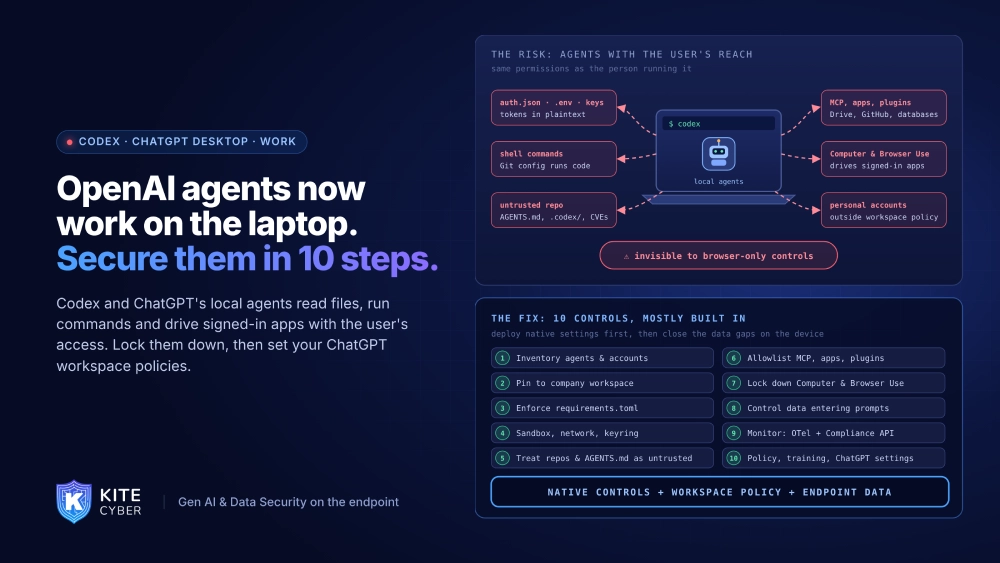
- 10 controls to secure Codex and OpenAI agents on employee devices
- Securing everyday ChatGPT use: the workspace policies to configure
- Quick-start checklist
- Where native controls stop


Table of Content
- Why OpenAI’s agents change the risk model
- What has already gone wrong
- Six surfaces where data can leave through OpenAI tools
- 10 controls to secure Codex and OpenAI agents on employee devices
- Securing everyday ChatGPT use: the workspace policies to configure
- Quick-start checklist
- Where native controls stop
How to Secure OpenAI Codex and ChatGPT Agents: 10 Controls for 2026
-
November 25, 2026
-
Summary:
The weeks before someone resigns are when customer lists, pricing and source code are most likely to walk out the door, and AI tools now make that data easier to reshape and carry. Companies that watch data movement on the device, in context, can protect what matters without treating every employee like a suspect.
Kitecyber | Data & Gen AI Security | November 2026
A developer runs codex in a repository and asks it to fix a failing build. A finance lead opens the ChatGPT desktop app and asks Work to compare three spreadsheets on her laptop, then let Computer Use update a report in Excel. An engineer connects Codex to an internal MCP server and a GitHub plugin. In each case, an OpenAI agent is reading local files, running commands or operating applications with that employee’s access.
That is exactly what makes these tools productive. It is also why securing OpenAI usage is no longer just a question of which websites employees can reach. This guide explains where the risk sits across Codex, the ChatGPT desktop app and ChatGPT itself, walks through ten controls security teams can put in place, and closes with the workspace policies every ChatGPT deployment should configure.
Key takeaways
- Codex (CLI, IDE extension and desktop) and the ChatGPT desktop app’s local Work, Computer Use and Browser Use features act on the device with the user’s permissions. Browser-only controls see a fraction of this activity.
- OpenAI ships strong native controls: admin-enforced requirements.toml, OS-level sandboxing, MCP allowlists, workspace pinning, feature flags for browser and Computer Use, and Compliance API logs. Several of them are off or permissive by default.
- Treat every repository, AGENTS.md file, Git config, web page and connector response as untrusted input. In 2025 and 2026, several Codex CVEs were triggered simply by opening a prepared repository.
- OpenAI’s own guidance says audit logs “help with monitoring and investigation but do not block processing.” Deciding which sensitive data reaches a prompt still requires data-aware controls on the endpoint.
Why OpenAI’s agents change the risk model
ChatGPT started as a browser tab. A URL filter covered most usage. OpenAI’s current products work very differently.
- Codex CLI and IDE extension. A coding agent that reads and edits files in a workspace, runs shell commands, searches the web and calls MCP servers. Codex enforces an OS-level sandbox (Seatbelt on macOS, bubblewrap plus seccomp on Linux, and a dedicated sandbox on Windows) and an approval policy that decides when it must ask before acting.
- The ChatGPT desktop app. It now hosts Codex alongside Work, OpenAI’s agent for multi-step tasks. Work Local can use approved files, applications and browser sessions on the computer. Computer Use operates native apps through screen and accessibility permissions. Browser Use drives a built-in browser or the user’s Chrome through an extension, including tabs where the user is already signed in.
- Cloud execution. Codex Cloud and Work Cloud run tasks in OpenAI-hosted containers, and “Local computer access with Work Cloud” lets a cloud-coordinated task execute steps on a connected laptop.
- ChatGPT on the web and mobile. Chat, file uploads, projects, custom GPTs, memory, shared links and connected apps.
The product line moves fast. ChatGPT agent mode has been retired in favor of Work, and the ChatGPT Atlas browser has been retired and no longer receives updates. Retired software that stays installed on laptops is an unpatched risk in its own right.
Shared responsibility
|
OpenAI provides |
Your organization decides |
|
Model safeguards, product security, sandboxing and patches |
Which accounts, plans and workspaces employees may use |
|
Business data commitments (Business, Enterprise and Edu data is not used for training by default) |
What data employees may put into prompts, files and agent tasks |
|
Admin controls: SSO, SCIM, RBAC, Agent Security policies, requirements.toml, feature flags |
Whether those controls are deployed, tested and enforced on every device |
|
Compliance API, audit logs and OpenTelemetry export |
Who collects and monitors them, and how incidents are handled |
Training commitments govern what happens after data arrives. They do not stop sensitive data from being sent in the first place.
What has already gone wrong
These incidents show realistic failure modes, most of them triggered by ordinary work.
- Project config that runs on startup (CVE-2025-61260). Check Point Research showed that a repository could ship a .env file pointing CODEX_HOME at a project folder whose config.toml declared an MCP server. Running codex in that repository executed the attacker’s command without a prompt. OpenAI patched it in August 2025.
- Sandbox boundary escape (CVE-2025-59532). In Codex CLI versions before 0.39.0, the model could choose a working directory outside the workspace, and the sandbox would let commands write there.
- Git settings as an attack path (CVE-2026-19590 to CVE-2026-19593). In 2026, researchers reported that repositories carrying an attacker’s local Git configuration, such as core.fsmonitor, core.hooksPath or attribute filters, could make Codex CLI or Codex Desktop run programs outside the sandbox and without approval during routine Git checks. A related flaw let repository instructions slip a file-writing Git command past the approval check through a PowerShell parsing difference. All are fixed in Codex CLI 0.131.0 and Codex Desktop 26.519 and later. OpenAI reports no known abuse in the wild.
- Token theft in the cloud. BeyondTrust Phantom Labs found a command injection in Codex Cloud’s task creation flow, through a GitHub branch name, that could expose a user’s GitHub access token. OpenAI fixed it by early 2026.
- Connector prompt injection. Radware’s ShadowLeak and ZombieAgent research showed that a crafted email could make ChatGPT, connected to Gmail, leak inbox data from OpenAI’s servers without any user click. OpenAI fixed both, but the pattern of untrusted content steering an agent with access applies to every connector.
- Supply chain around the agent. In 2026 the Cloud Security Alliance documented an npm package, a third-party web UI for Codex with tens of thousands of weekly downloads, that silently exfiltrated Codex OAuth tokens. By default Codex can store those tokens in a plaintext file.
- Everyday data exposure. Netskope’s Cloud and Threat Report: 2026 found that the average organization records 223 incidents a month of users sending sensitive data to AI apps, that these incidents doubled year over year, and that 47% of generative AI users rely on personal accounts.
The pattern: untrusted content plus an agent with the user’s access. The attacker rarely needs to compromise OpenAI itself.
Six surfaces where data can leave through OpenAI tools
- 1. ChatGPT on the web. Pasted customer records, uploaded spreadsheets and contracts, project files and custom GPT knowledge. Personal accounts are the main concern.
- 2. The ChatGPT desktop app. A native app, so browser extensions do not see it. Supports paste, file uploads, voice and Appshots, which capture the frontmost window as context.
- 3. Codex CLI and IDE extension. Reads source code, configuration and anything else in reach of the developer, including .env files and cloud credentials unless restricted.
- 4. Work Local, Computer Use and Browser Use. Act through applications and browsers that may already be signed in to company systems, inheriting those accounts’ permissions.
- 5. Apps, plugins and MCP servers. Pull data from Google Drive, GitHub, Slack, databases and internal tools, and can take write actions. Their responses can carry prompt injection.
- 6. Cloud execution. Codex Cloud and Work Cloud tasks run on OpenAI infrastructure, outside your endpoints, with their own network and secret settings.
10 controls to secure Codex and OpenAI agents on employee devices
1. Build an inventory of OpenAI agents, accounts and add-ons
Start with what is actually installed and signed in:
- Which devices run Codex CLI, the Codex IDE extension, the ChatGPT desktop app (and which version), the ChatGPT Chrome extension, or a retired ChatGPT Atlas install?
- Which accounts are in use: your Enterprise or Business workspace, personal Free, Plus or Pro accounts, or API keys?
- What is configured locally: ~/.codex/config.toml, project .codex/ folders, MCP servers, plugins, Computer Use app approvals, and whether ~/.codex/auth.json holds credentials in plaintext.
Device management can report installed apps. Configuration files reveal the rest. Repeat the inventory regularly, because Codex and the desktop app update often and new capabilities arrive behind feature flags.
Priority: Immediate
2. Pin usage to your company workspace and block personal accounts
Personal accounts sit outside SSO, retention settings and the Compliance API. Provide a sanctioned workspace first, then restrict the alternatives.
- Use ChatGPT Enterprise or Business with verified domains, SSO and SCIM. Turn off automatic account creation if SCIM manages access.
- Enforce Workspace Blocking. On Enterprise, your proxy or SASE platform can add the ChatGPT-Allowed-Workspace-Id header to requests to chatgpt.com. ChatGPT then filters out every workspace not listed, including personal workspaces. Users left with no allowed workspace get a 403.
- Pin Codex logins. forced_login_method = "chatgpt" and forced_chatgpt_workspace_id = "" make Codex log out and exit if the credentials do not match. For strict enforcement, OpenAI recommends deploying allowed_login_methods and allowed_chatgpt_workspaces through the system requirements.toml or MDM, because cloud-managed requirements ignore those two settings and a workspace restriction alone does not block API-key sign-in.
Header injection only works where traffic passes through your proxy, so remote and off-network devices need an endpoint-based path.
Priority: Immediate
3. Deploy admin-enforced requirements for Codex
Codex separates requirements, which users cannot override, from managed defaults, which set starting values users can change. Requirements can be delivered three ways, in this order of precedence:
- Cloud-managed requirements from Agent Security in the ChatGPT Admin Console, assignable per user group (Business and Enterprise).
- macOS MDM through the com.openai.codex preference domain, key requirements_toml_base64, using Jamf, Kandji, Fleet or similar.
- A system file: /etc/codex/requirements.toml on macOS and Linux, or %ProgramData%\OpenAI\Codex\requirements.toml on Windows.
A reasonable starting baseline:
# requirements.toml
allowed_approval_policies = ["on-request"]
allowed_sandbox_modes     = ["read-only", "workspace-write"]
allowed_web_search_modes  = ["cached"]
allow_managed_hooks_only  = true

[permissions.filesystem]
# adjust paths for your OS and directory layout
deny_read = ["https://kitecyber.com/Users/*/.ssh", "https://kitecyber.com/Users/*/.aws", "./**/.env"]

[rules]
prefix_rules = [
  { pattern = [{ token = "git" }, { any_of = ["push", "commit"] }],
    decision = "prompt", justification = "Review before changing remote history." },
]
What this does:
- Blocks --ask-for-approval never and danger-full-access, including the --yolo flag.
- Limits web search to OpenAI’s cached index, which reduces exposure to prompt injection from live pages.
- Runs only hooks your organization manages, not hooks shipped in a repository.
- Denies reads of common secret locations and requires approval before git push or git commit.
Test on representative devices first. Some keys require recent Codex versions (permission-profile allowlists need 0.138.0 or later), OpenAI has retired the untrusted approval policy, and on native Windows managed deny_read applies to Codex’s direct file tools but not to shell subprocesses. Also note that Codex local is enabled by default for new ChatGPT Enterprise workspaces, so turn it on deliberately for the groups that need it.
Priority: High
4. Keep the sandbox on, the network closed and credentials protected
The sandbox is the boundary that still holds when an agent is tricked.
- Stay in workspace-write or read-only. In the default mode, network access is off and writes are limited to the workspace. .git, .codex, .agents and .aws inside the workspace are protected as read-only. That protects them from changes, not from being read, which is why the deny_read rules above matter.
- If you open the network, constrain it. Managed network requirements ([experimental_network]) can start a proxy with allowed and denied domains. OpenAI notes this proxy does not filter web search, app and MCP connections, Browser Use, Computer Use or cloud tasks, so pair it with the controls in sections 6 and 7. The feature is still labeled experimental, and Windows support is limited.
- Windows and containers. Use OpenAI’s Windows sandbox where supported, or WSL2. Inside a dev container, either keep Codex’s Linux sandbox working or make the container the boundary.
- Move tokens off disk. Set cli_auth_credentials_store = "keyring" and mcp_oauth_credentials_store = "keyring". Admins can enforce the CLI setting through authentication requirements. Wherever a file is still used, treat ~/.codex/auth.json like a password.
Priority: High
5. Treat repositories, instruction files and add-ons as untrusted input
Every major Codex CVE in the last year started with content inside a repository.
- Patch quickly. Require Codex CLI 0.131.0 or later and Codex Desktop 26.519 or later as a floor, and raise it as advisories appear. If you disable the desktop app’s updater (in_app_updates = false), you own the update pipeline.
- Use project trust. Projects marked trust_level = "untrusted" skip project-scoped .codex/ layers, including local config, hooks and rules.
- Review agent files like code. AGENTS.md is a set of instructions the agent reads, so it can carry prompt injection. Flag changes to AGENTS.md, .codex/, .rules files and .env in pull requests.
- Be careful with repository archives. A normal git clone does not copy .git/config, but ZIP files, shared drives and copied folders can. Open unfamiliar code in a container or disposable VM.
- Vet anything that wraps Codex. Third-party UIs, npm packages and browser extensions that touch Codex credentials deserve the same review as any other software with access to tokens.
Priority: High
6. Govern MCP servers, apps and plugins with least privilege
- Allowlist MCP servers for Codex. An [mcp_servers] table in requirements.toml enables a server only when its name and identity (a command for stdio servers, a url for HTTP servers) match an approved entry. An empty list disables all MCP servers.
- Control ChatGPT apps and plugins. In the Admin Console, open Plugins to decide which apps and plugins are available and which actions they can take. New plugins and apps are disabled by default in Enterprise and Edu. Use RBAC to give them only to the roles that need them. Business workspaces have apps enabled by default, so review that list.
- Restrict connected accounts by domain. Enterprise customers can ask OpenAI to block company-domain accounts from connecting supported apps from workspaces outside your organization.
- Scope credentials. Give MCP servers and connectors dedicated, least-privilege service accounts. Never connect an agent to production with an engineer’s personal admin token.
- Keep approval prompts for side effects. Codex requires approval for MCP and app tools that advertise destructive actions. Do not auto-approve write, send or delete actions from untrusted content.
Priority: High
7. Configure the ChatGPT desktop app’s local agents deliberately
Work Local, Computer Use and Browser Use are powerful, and each has its own control.
- Feature flags. In Agent Security or the [features] table of requirements.toml, you can set computer_use, browser_use, browser_use_external (the Chrome extension path), in_app_browser, apps and plugins to false, and set allow_appshots = false to block window capture. Turn on only what each group needs.
- App rules and approvals. Restrict which native apps Computer Use may operate and whether users can save “always allow” approvals.
- Locked devices. On managed Macs, set computer_use.allow_locked_computer_use = false so users cannot let agents continue after the screen locks.
- Close the browser bypass. OpenAI documents that Computer Use operating a browser as a native app is not covered by Browser Use site policies. Either disable Computer Use or deny browser apps in its app rules.
- Mind existing sign-ins. An agent driving a browser or app that is already signed in to Salesforce or your HR system acts with that account’s permissions.
- Cloud plus local. “Local computer access with Work Cloud” sends task context to OpenAI’s cloud and does not offer strict zero data retention. Enable it only after reviewing those terms and your audit coverage.
Priority: Medium–High
8. Control what sensitive data reaches the prompt
No sandbox decides whether a particular paste, upload or agent file read is appropriate. OpenAI’s own Work security guidance tells customers to “apply your organization’s endpoint, file-access, proxy, and data-loss-prevention controls” and to confirm whether those controls can stop sensitive information from entering a task before it is processed.
- Define data categories that must never go to any AI tool (credentials, regulated health or payment data, unreleased financials) and categories allowed only in approved enterprise workspaces.
- Classify data where it lives, so policy can act on what a file contains rather than its name or location.
- Apply controls at the point of action: paste, upload, Appshots, agent file reads and Computer Use access to sensitive apps.
- Coach rather than silently block in grey areas. Explaining why an action was stopped changes behavior.
Priority: High
9. Monitor activity and prepare an incident playbook
- Export Codex telemetry. Codex can send OpenTelemetry events for prompts, approval decisions, tool results, MCP usage and network proxy decisions. Pin the exporter in managed config and keep log_user_prompt = false unless your policy allows storing prompt text.
- Stream the Compliance API. Enterprise and Edu workspaces can export conversation and audit logs, including Codex events such as CODEX_LOG and CODEX_SECURITY_LOG. Logs are retained for 30 days, so collect continuously into your SIEM. Codex usage signed in with an API key is not included.
- Know the gaps. OpenAI notes that it does not keep a complete record of Chrome extension actions, that not every local file operation, screenshot or approval appears in the Compliance API, and that cloud orchestration events do not reach your OpenTelemetry collector. Endpoint telemetry fills in the device side.
- Write the playbook: how to revoke a user’s ChatGPT session and Codex access tokens, rotate credentials an agent could read, remove a malicious MCP server or plugin, and preserve local evidence. Set an access token expiration limit for Codex in the Admin Console.
Priority: Medium–High
10. Write an AI acceptable-use policy and train people on it
Keep it short and specific:
- Approved tools, account types and the only workspace employees may sign in to.
- Data categories that cannot be used with AI, with concrete examples.
- Which agent actions need a human: pushing code, sending email, changing production systems, Computer Use in finance or HR apps.
- Review requirements for AI-generated code and documents.
- A blame-free way to report mistakes quickly.
Map it to frameworks you already report against, such as SOC 2, ISO 27001, HIPAA or GDPR, so AI controls appear in existing audits.
Priority: Foundational
Securing everyday ChatGPT use: the workspace policies to configure
Most employees will use ChatGPT for chat, documents and analysis rather than coding agents. These are the settings to review in the ChatGPT Admin Console before broad rollout. Availability differs between Business and Enterprise, and some controls depend on rollout.
|
Area |
Policy to configure |
Why it matters |
|
Identity |
Verify domains, enforce SSO, provision with SCIM, turn off automatic account creation, set a least-privilege default role |
Access follows your identity lifecycle and leavers lose access automatically |
|
Account control |
Workspace Blocking header (ChatGPT-Allowed-Workspace-Id) on your proxy; IP allowlisting for workspace and Compliance API access |
Stops sign-in to personal and unapproved workspaces on managed networks |
|
Retention and keys |
Set the workspace retention period; consider Enterprise Key Management and data residency where required |
Limits how long prompts, files and outputs persist |
|
Features (RBAC) |
Decide per role on models, GPT creation and sharing, projects, memory and improved memory, Work Local, Work Cloud, Codex local and access tokens |
Gives powerful features only to the groups that need them |
|
Sharing |
Turn off Share chats and scheduled tasks where not needed (Enterprise and Edu). Business cannot disable shared links workspace-wide |
Workspace links are restricted to members, but conversations can still spread internally |
|
Apps and plugins |
Start with a narrow app list, restrict write actions, review OAuth and action domains regularly |
Connectors are the main path to bulk data and to prompt injection |
|
Prompt-injection risk |
Make Lockdown Mode available to high-risk users (executives, finance, legal) |
Limits web and external-service tools that can be abused for exfiltration. It does not apply to Codex |
|
Audit |
Connect the Compliance API to your SIEM or eDiscovery tool and name who reviews it |
Gives you evidence for investigations and audits |
|
Mobile |
Use ChatGPT for Intune for managed mobile access where available |
Brings phones under the same identity and app protection policies |
Two practical notes. First, workspace settings govern only your workspace. An employee on a personal account outside your network is outside all of them, which is why account control (section 2) and endpoint controls matter. Second, tell employees what is monitored and why. Clear rules and in-the-moment guidance change behavior better than surprise blocks.
Quick-start checklist
|
# |
Control |
Native option |
Priority |
|
1 |
Inventory agents, accounts, configs and retired installs |
MDM app inventory, config file review |
Immediate |
|
2 |
Company workspace only |
SSO/SCIM, ChatGPT-Allowed-Workspace-Id, forced_chatgpt_workspace_id, allowed_chatgpt_workspaces |
Immediate |
|
3 |
Admin-enforced Codex requirements |
Agent Security, macOS MDM, requirements.toml |
High |
|
4 |
Sandbox, network and credential protection |
workspace-write, deny_read, [experimental_network], keyring storage |
High |
|
5 |
Untrusted repos, instructions and add-ons |
Version floors, trust_level, allow_managed_hooks_only |
High |
|
6 |
MCP, app and plugin governance |
[mcp_servers] allowlist, Admin Console Plugins, RBAC |
High |
|
7 |
Desktop agent configuration |
computer_use, browser_use, app rules, allow_appshots |
Medium–High |
|
8 |
Data-aware controls on paste, upload and file access |
Endpoint DLP and classification (third party) |
High |
|
9 |
Monitoring and incident response |
OpenTelemetry, Compliance API |
Medium–High |
|
10 |
Policy and training |
Internal |
Foundational |
Where native controls stop
OpenAI’s controls are the right foundation, and every organization using Codex or ChatGPT should deploy them. It is still worth being clear about what they do not cover:
- Content. Sandboxes, approvals and feature flags control what an agent can reach. They do not classify what a paste, upload or file contains and decide whether it may be shared.
- Personal accounts off-network. Workspace Blocking depends on traffic passing through your proxy.
- Audit completeness. OpenAI states that local file operations, screenshots, Chrome extension actions and approvals may not all appear in its logs.
- Paths around a single control. Computer Use can operate a browser outside Browser Use policies, and the Codex network proxy does not cover MCP, web search or browser traffic. Each path needs its own check.
- Other AI tools. OpenAI’s settings govern OpenAI products. The same laptop probably runs Claude, Gemini, Copilot and other agents that need the same policy.
Closing those gaps means adding controls on the device itself that understand data, user, process and network context across every AI tool, not one vendor at a time.
Where Kitecyber fits
Kitecyber provides Gen AI and data security that runs on the endpoint, the layer where Codex, the ChatGPT desktop app and its local agents actually work. A single lightweight agent combines device posture, OS and process activity, user activity, network activity and on-device data classification across 80+ categories. That context lets security teams:
- Discover AI applications, agents, extensions and accounts across every managed device, including personal ChatGPT accounts and tools beyond OpenAI.
- Classify what a paste, upload or agent file access contains and block, warn or allow at the moment of action, before data leaves the device.
- Enforce approved-AI and approved-workspace policies with a built-in secure web gateway, on and off the corporate network, and use zero-trust access to limit what agents can reach.
- Produce continuous evidence mapped to frameworks such as SOC 2, ISO 27001, HIPAA, PCI DSS, GDPR, NIST 800-53 and CMMC.
Kitecyber can run as SaaS, self-hosted or with your own keys, and typically goes live in about a day. It complements OpenAI’s native controls rather than replacing them.
Book a Kitecyber walkthrough at kitecyber.com to see Codex, ChatGPT and other AI activity, data context and policy on one endpoint view.
Frequently Asked Questions
It can be, when it is configured deliberately. Pin it to your workspace, deploy admin-enforced requirements, keep the sandbox in workspace-write or read-only, allowlist MCP servers and keep clients current. Most risk comes from permissive settings, untrusted repositories and the data users share.
OpenAI states that Business, Enterprise and Edu data, including Codex data, is not used to train its models by default. That governs what happens after data is sent. It does not stop sensitive data from being shared.
On Enterprise, have your proxy add the ChatGPT-Allowed-Workspace-Id header with your workspace IDs to requests to chatgpt.com. For Codex, enforce allowed_login_methods and allowed_chatgpt_workspaces through MDM or the system requirements.toml. Remote devices need an endpoint-based path, because header injection only applies to traffic through your proxy.
An admin-enforced policy file that users cannot override. It can restrict approval policies, sandbox modes, web search, hooks, MCP servers, file reads, command rules and desktop features such as Computer Use. Deliver it from the Admin Console, through macOS MDM, or as a system file.
Add the paths to deny_read under [permissions.filesystem] in requirements.toml, and keep the sandbox enabled. On native Windows, managed deny_read covers Codex’s direct file tools but not shell subprocesses, so use the Windows sandbox or WSL2 and protect secrets at the OS level too
Yes. Set computer_use, browser_use, browser_use_external and in_app_browser to false in Agent Security or requirements.toml, or allow them only for specific groups and apps.
CVE-2025-61260 (project config could run an MCP command at startup), CVE-2025-59532 (sandbox working-directory escape), and CVE-2026-19590 through CVE-2026-19593 (repository Git settings or instructions could run programs without approval). All are fixed. Keep Codex CLI at 0.131.0 or later and Codex Desktop at 26.519 or later.

Ajay Gulati
Ajay Gulati is a passionate entrepreneur focused on bringing innovative products to market that solve real-world problems with high impact. He is highly skilled in building and leading effective software development teams, driving success through strong leadership and technical expertise. With deep knowledge across multiple domains, including virtualization, networking, storage, cloud environments, and on-premises systems, he excels in product development and troubleshooting. His experience spans global development environments, working across multiple geographies. As the co-founder of Kitecyber, he is dedicated to advancing AI-driven security solutions.